User guide
Loudmill is your marketing assistant. Every week it writes your social posts and your newsletter in your voice. You read them and approve the ones you like. Approved posts go out by themselves.
This guide takes you from your first sign-in to a normal week. Read sections 1 to 3 first. The rest you can read when you need it.
1. What Loudmill does, and what it never does
What it does. Loudmill learns about your business. Every Friday it writes next week's posts and your newsletter. You approve them on your phone in about ten minutes. Each approved post goes out at its time, and Loudmill shows you which posts bring in work.
Five promises, built into the app:
- Nothing goes out without your yes. Every post waits for a person to approve it. If anyone edits an approved post, it needs approving again.
- Your real work, front and centre. Photos from your own jobs come first, with your customer's OK. Without one, a post gets a clean text card in your colours. AI pictures only if you choose, and they are labelled as made by AI. An AI picture under “here's our work” gets a heads-up, and you decide.
- If something goes wrong, you hear first. You get an email and a phone alert in plain words, with a button to fix it.
- Help with the rules. You stay in charge. Drafts flag words like “best” or “guaranteed” for you to check. Emails go from your own address, only to people who agreed to hear from you. You approve every word, so the final check, and the responsibility for what you publish, stay with you.
- It gets more like you every week. Every edit and every rejection teaches it. You can see what it has learned, and change it.
Where Loudmill posts today:
| Channel | Today |
|---|---|
| Email newsletters | Live. From your own email address, or through your Mailchimp |
| Bluesky | Live |
| Mastodon | Live |
| Facebook, Instagram, LinkedIn, Google Business Profile, Threads, Pinterest, TikTok, YouTube Shorts | Coming. Each one switches on when that platform approves Loudmill |
| X | Not offered for now: drafts for you to copy |
Until a channel posts by itself, Loudmill still writes its posts, and each one is ready to copy in one tap (see section 6).
2. Getting started
Sign in
There is no password to remember.
- Open Loudmill on your phone or laptop.
- Choose one way to sign in:
- Google. One tap if you have a Google account.
- Sign in with an email code. Works with any email address, including Outlook and work addresses. We email you a code; you type it in. You go to Microsoft's sign-in page in the same tab and come back to Loudmill once the code is in (Loudmill uses Microsoft's sign-in service to send it). The code can take a minute or two to arrive.
- Use the same way every time. An account opens only the way it was made. If you choose the wrong one, Loudmill tells you which button to use.
Tip: put Loudmill on your phone's home screen. On an iPhone, open it in Safari, tap Share, then Add to Home Screen. On Android, open it in Chrome, tap the ⋮ menu, then Install app.
Create your business
During early access you need an access code from us. Ask on our early-access form or email hello@loudmill.com.
- Type your business's name under What's your business called?
- If you're asked for an Invite code, type the code from our email.
- Tick I accept the Terms of service and the data processing agreement for my business.
- Press Start.
Set up: three steps
Step 1: Your business.
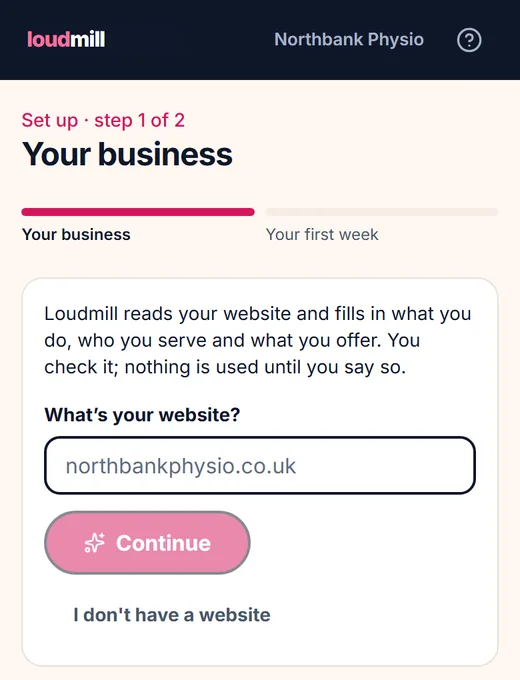
- Type your website address under What's your website? and press Continue. Loudmill reads your site and fills in what you do, who you serve and what you offer.
- Check what it filled in, especially offers and prices. Add anything your site doesn't say. Loudmill only ever uses facts you give it.
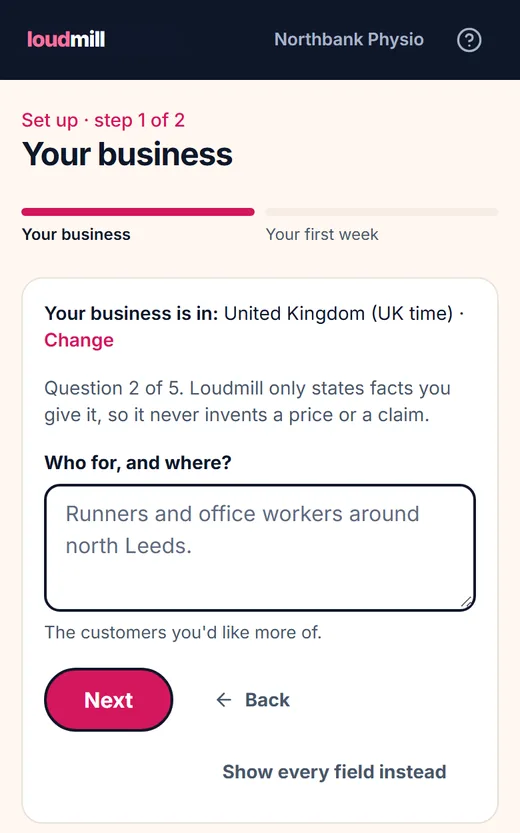
- No website, or one Loudmill can't read? Press I don't have a website. You get five short questions, one at a time. Only the first is needed:
- What do you do?
- Who for, and where?
- What do you offer? Add prices if you like.
- What do customers say they like about you?
- Anything you never want said?
- Press Save and continue.
Where is your business? Above the questions you'll see a line like Your business is in: United Kingdom (UK time). Every post time, Friday's drafts and reminders follow it. If it's wrong, press Change and pick your country (and time zone, if your country has more than one). If your details and your phone disagree, Loudmill asks you once, for example “Is this business in the United Kingdom or India?”.
Step 2: Where to post.
- Tick the places you actually use. Nothing is ticked to begin with, and nothing is written for anywhere you don't tick: a business that only uses Facebook and Instagram never gets LinkedIn drafts.
- The first group, Posted by themselves, goes out by itself once connected in Settings. Which channels sit there depends on what's switched on for your Loudmill: email, Bluesky and Mastodon always, and each platform (Google Business Profile included) once it's switched on. The second group is written for you to copy across.
- Press Continue. You can change this any time on Business, under Where to post.
Step 3: Your first week.
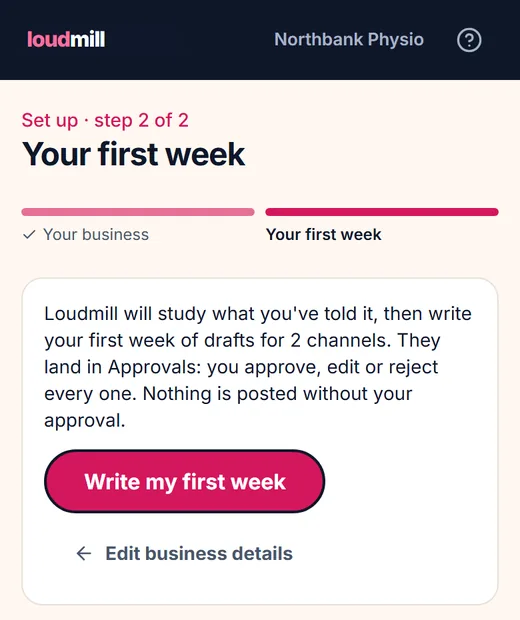
- Press Write my first week. Loudmill studies your business, then writes a week of drafts. This takes a minute or so. You can leave the page; it carries on.
- When they're ready you land on Approvals: “Your first drafts are ready. Nothing goes out until you approve it.”
Choose where to post
Open Business (on a phone: More, then Business). Under Where to post, pick your channels. The first group posts by itself once connected (what's there depends on what's switched on for your Loudmill: email, Bluesky and Mastodon always, each platform once it's switched on). The others are written for you to copy until they're switched on; a channel in the first group you haven't connected yet is written for you to copy too, and Post to says so.
Your brand: colours, logo and font
These are on the Business page, not in the setup steps:
- Get my brand from my website. Loudmill reads your colour, logo and font and asks Is this you? Nothing changes until you say yes.
- Brand kit. Pick your colour, press Add logo (a PNG with a see-through background looks best), then Save colour. Tick Put it on new pictures to add them to new pictures and text cards.
- Pages Loudmill checks each week. Your blog, news, events or offers page: press Find pages on my website or paste an address, then Follow (up to three). Every Thursday from 09:00 Loudmill reads them; at most two new items go into a week's drafts (Use next first, Don't use keeps one out), each once, and a draft says only what the page says. Each page says how its check went, plainly.
- How your pictures look. Pick a look, a font for your text cards, and anything pictures must never show.
Finding your way around
- On a phone, the bar at the bottom has Home, Approvals, Calendar, Replies and More. More holds Insights, Answers, Contacts, Follow-ups, Business, Team, Activity, Settings, Help and Sign out.
- On a laptop, everything is in the menu down the left.
- Your photos and Reviews open from Home (Add photos, Ask for a review). Be found everywhere opens from the top of the Business page.
3. Your week
Friday: your drafts arrive
Every Friday at 10:00 (your time zone), Loudmill writes next week's posts, Monday to Sunday, and emails everyone who approves: “Your week is drafted”.
- Each channel gets a few posts a week on set days. That works better for a small business than posting every day.
- Want a different shape? On Approvals, press Write a week, then Change: how many posts each channel gets (0 to 7) and on which days, and the mix. Loudmill remembers it, and Friday's automatic week uses it too (see Write next week).
- Your newsletter goes every two weeks. You can change that (see Weekly drafts settings).
- Still not approved by Sunday? From 18:00 you get one reminder, by email and on your phone.
Approving: tick, then Approve
There is one way to approve, so a stray tap can never send your week.
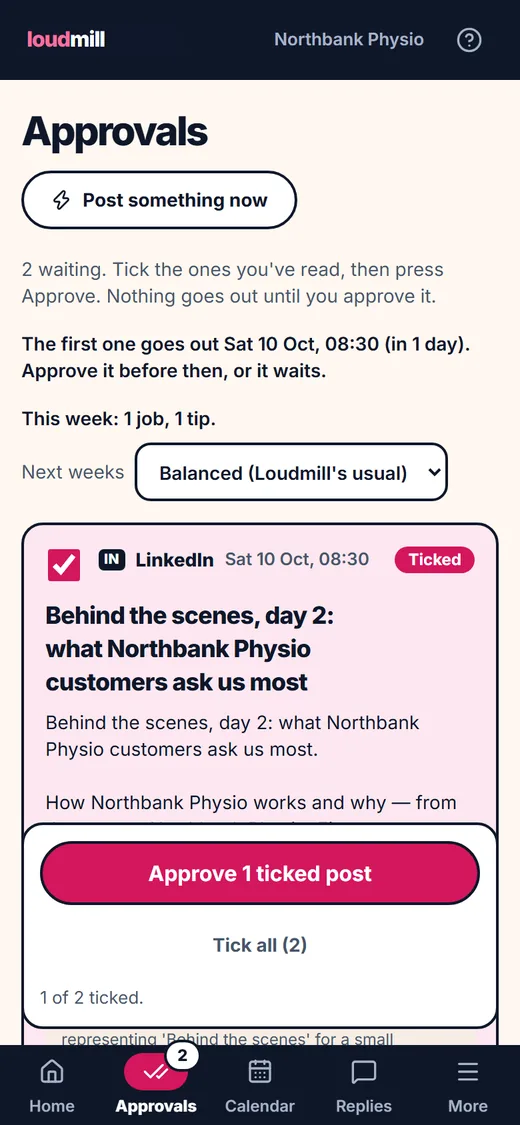
- Open Approvals.
- Read a draft. If it's good, tick the box in its top corner. Nothing is ticked to start.
- A draft with a warning says Check before it goes out. Read the warning. Its tick is inside the warning: I've read this. It's fine to post. Tick it only once you've read it.
- Press Approve 1 ticked post (the button counts what you've ticked). Only ticked drafts go out, each at the time shown.
Wrong channel? On a waiting draft, More has Move to another channel (the new draft replaces this one, which is kept in its history) and Copy to another channel (this one stays). Pick the channel, Same words or Loudmill fits them, then Move it or Make the draft. Post again is for posts already sent.
Working on. After you edit or rewrite a draft, it stays in front, on its own, under Working on, with the latest version showing (a rewrite's new draft takes the old one's place). Change it as many times as you like; it leaves only when you approve or reject it. Show everything waiting brings the full list back.
Show (beside the count) changes the list: Going out soonest (the usual), Newest first (what was written most recently, so what you just wrote is at the top), Going out today, or Time passed. Loudmill remembers your choice on this device. Each draft says when it goes out and when it was written. A draft whose time has already passed says Time passed: goes out as soon as you approve, and a note at the top counts them, with Show them. Move them to the next free slots moves each to the next day its channel has nothing planned, at the same time of day (an offer never past its last day); Undo puts them back. Or press Pick a new time on one. Approving one as it is asks first, because it goes out straight away: Approve anyway, or Cancel.
In a hurry? Tick all ticks every draft without a warning. You still press Approve yourself.
Three ways to see the week, one place to check a draft
Beside Show, View has Cards (every draft in full, as always), List (one line per draft: the channel, the day and time, the first line, a small picture and where it stands: Ticked, Read first, Needs a picture or Changed, check again) and Pictures (the week's pictures side by side, two across on a phone and four on a laptop, each whole in its frame, so you can see they match the posts and look like one business). In Pictures a carousel shows 1/4, a TikTok or YouTube Shorts draft says Video, a draft with no picture shows its first line instead, and two drafts sharing a picture say Same picture as the Facebook draft. Loudmill remembers your choice on this device.
Under Going out soonest the drafts sit under their day, for example Mon 20 Oct · 3 drafts · 1 checked, with drafts whose time has passed first.
Tap a line or a picture (or Check from here on a card) and the draft opens in Check: the whole post and its pictures, with Previous, 4 of 24 and Next at the bottom. On a phone it fills the screen, and the tick and Approve are in its footer. On a wide screen it sits beside the list.
You tick only what you've seen in full. A line or a picture gets its tick box once you've opened that draft in Check (or seen it as a card); if it changes after that, it says Changed, check again and the tick goes. Edit, Rewrite and Reject work inside Check, and a rewrite stays in its place (Rewritten, check again). Typed changes are never lost: Next, Close or Back asks Save, Discard or Keep editing.
Tick the 4 you've checked ticks every draft you've opened in full that has no warning, and the bar says what's left: 20 still to check · 3 need attention (warning or no picture). A carousel can be ticked only once every one of its pictures has appeared.
If a filter hides drafts you ticked, the bar says so (5 ticked, 3 of them not shown under this filter) with Show everything waiting. Approve sends only the ticked drafts you can see; the others keep their tick.
More than 100 waiting? Show 100 more under the list loads the next ones, and Check carries on into them. Edit or approve it in Approvals on a Calendar post opens that draft in Check, even when it isn't in the list you're looking at (Opened from the Calendar, with Show everything waiting).
What a warning means. Loudmill checks every draft against your rules, the platform's limits and UK advertising rules. It flags health claims (“pain-free”, “cures”), comparisons (“best in town”, “cheapest”), money promises, “was £60, now £45” prices, false urgency, and facts you never gave it (“award-winning”, “over a decade”). Fix the draft, or tick it yourself if you're sure it's fine.
Approve straight from the email
- In the “Your week is drafted” email, press Review and approve. Your drafts open on any phone, with no sign-in.
- Tick each post you've read, then press Approve.
- The link can only approve. To edit, rewrite or reject, open Loudmill from the bottom of the page. Posts with a warning wait for you in Loudmill.
- The link works for 7 days. Anyone who has the email can use it, so don't forward it.
Edit, rewrite or reject
Under each draft:
- Edit. Change the words yourself. An edited draft needs approving again.
- Rewrite. Tap a reason (Shorter, Friendlier, Less salesy, More specific, Add a call to action, A different topic) or type your own, then Rewrite it. A new version arrives in a few seconds. When some of the words are yours (a Quick post, or a draft you edited), tick Keep my wording and your own sentences stay word for word; Loudmill changes only the rest. If one of them comes back changed anyway, the new draft carries a warning naming it.
- Use the one before. Don't like the rewrite? Press it (next to What changed) and the earlier version is back, words and picture, exactly as it was (a draft you had rejected comes back rejected, not waiting). The rewrite goes into that post's History. If the earlier version's picture has been cleared away in the meantime (pictures nobody will see again go after 30 days), the card says so and you choose another.
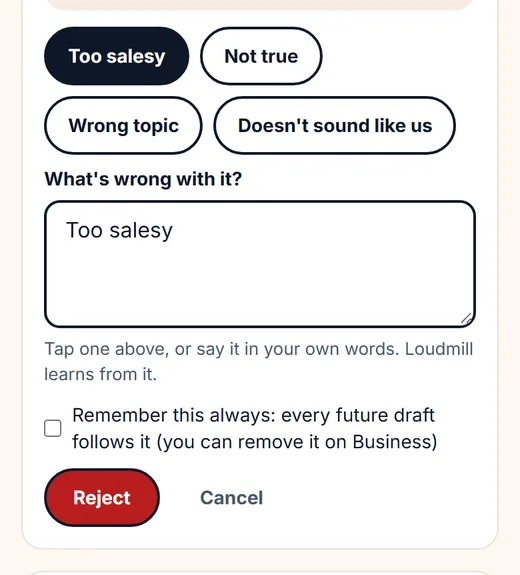
- Reject. Tap a reason (Too salesy, Not true, Wrong topic, Doesn't sound like us) or say it in your own words, then press Reject. Loudmill avoids it next time.
- Remember this always. Tick it under your reason and it becomes a rule every future draft follows. Your rules are listed on Business, where you can remove one.
- More holds Change the picture, Describe the picture, Make a video and History (who wrote, approved and published it).
Changed your mind?
Open Activity. Approved posts wait under Coming up. Press Take back and the post returns to Approvals until you approve it again. You can do this until it starts going out.
What went out, and where to see it
Under What went out, each post that was published has:
- View on Google, View on Facebook and so on: opens the post where it lives, in a new tab. It shows only when the platform gave Loudmill a link to it (or the link follows from the post's id). Google can take a few minutes to show a new update. A YouTube Short uploaded as private says View in YouTube Studio instead.
- Boost this on Facebook (or Instagram, LinkedIn, Pinterest, YouTube), on a post that really went out: press it for one step and the tip Boosting shows your post to more people. You set your own budget there; Loudmill isn’t involved in the cost. Doing it from a computer avoids app-store charges., then Open it on Facebook. The post opens on the platform, where its own Boost (or Promote) button is; you set any budget there. LinkedIn boosts only from a computer; Pinterest’s Promote is still reaching accounts country by country; a private YouTube Short must be made Public or Unlisted first. TikTok gets the steps only. Threads, Google, Bluesky, Mastodon, X and email have no boost button. Loudmill never holds a budget or touches an ad account. Switch them off in Settings → Weekly drafts → Boost buttons.
- See what was sent: exactly what went out, read-only: where (the account), when, the words as the platform got them, the picture or pictures, any button (a Google update's Learn more) and the link above. If Loudmill had to take a link out (Google doesn't allow links in an update's words), a line says so. Posts sent before 14 October 2026 are shown as approved, with a note, because the exact copy wasn't kept then.
- Google reviews every update before showing it. Until it has, Activity says Sent to Google (“Google usually shows new updates within minutes. Loudmill checks again every hour, or press Check now”; Google’s own page calls this Pending). Loudmill asks Google every hour while an update is under review; Check now asks straight away. Then the row says Live on Google with the link, or Google didn’t publish it.
Create a post
On Approvals, press Create a post (beside it, Write a week opens the week's sheet). The composer, This post, has three starting points:
- Update. Type what's happening (“A cancellation has freed Thursday 2pm”), choose Who writes it?, tick where it goes under Post to, choose the Picture (or Upload a photo, or Choose from my photos), and press Write it. You get a draft for each channel you ticked, and you're taken straight to it: the new drafts, and only those, under Just written, even if a channel filter would have hidden them. Show everything waiting (or Back) returns to the full list. The same goes for Customer review and Offer.
- Customer review. Paste a review word for word, say who wrote it, tick that you have their permission, tick where it goes, and choose the picture.
- Offer. Say what it is, its last day, the terms, where it goes and the picture. Every post says when it ends, and it's never posted after its last day.
Who writes it? has two choices, and Loudmill remembers the last one you used:
- Loudmill writes it up for each channel (how it works unless you say otherwise): your line, in your voice, fitted to each channel, with nothing you didn't say added.
- Post my words exactly: one draft per channel with your text as you typed it, and nothing else: no headline, no hashtags, no call to action, no picture idea, not even your tracked link (add one in Edit if you want clicks counted). The button reads Make the draft (or Make the drafts). Each draft carries a Your words badge, and no AI is used, so nothing is spent. The usual checks still run: a text too long for X gets a warning, never a cut.
Check spelling sits under a Your words draft. Press it and Loudmill reads your text once (a small AI call, only when you press; the fixes that follow never ask again) and underlines anything it thinks is a slip, like a word processor: each with Fix this one, then Fix all and Ignore. Nothing changes unless you tap it, and a fix is saved as your own edit, so the post stays yours. A Your words draft never gets an AI picture made for it by itself either: it gets one of your own photos, a picture you've kept, or a text card of your first line; AI picture on the card is still yours to press. Your slang, dialect, trade words (“sparky”, “innit”), place names, people's names, prices and the words of your own services are left alone; a suggestion is never more than a few words, so it can't quietly rewrite you.
Post to lists the channels you chose under Where to post that post by themselves (email only once your own address is set up and you have contacts). The first time, nothing is ticked and Remember these for next time is on: tick where this one goes, and Loudmill won't ask again. After that your choice is ticked for you; change it for one post and it stays a one-off, or tick Remember to make the change stick. To start again, open Business, then Where to post, and press Clear next to “Quick posts go to”. Under the chips, Add or remove channels takes you straight to Where to post; the same line says why the row is short when it is (“Only LinkedIn posts by itself for this business”, or “Email appears here once your sending address is set up”).
Picture sits under Post to on all three as one line (“Picture: Let Loudmill choose”): press Change to pick, and Loudmill remembers the last choice you made. Who writes it? is the same kind of line on Update.
Upload a photo (Update only) sits under Post to: take a photo or choose one from your phone, and it shows small with Remove the photo. It goes on each draft, cropped to fit, and the Picture line steps aside (your remembered choice stays for next time). With Loudmill writes it, Loudmill looks at the photo and writes about what it shows, adding nothing you didn't say; with Post my words exactly, your words stay as typed and no AI is used. The photo is also kept in Your photos, marked as on a post, and is never put on another post by itself. Share only what you're allowed to: no house numbers, faces or number plates unless they agreed.
- Let Loudmill choose (how it works unless you say otherwise): your own photo if one is free, then a picture you kept, then a text card or an AI picture as set under Settings → Weekly drafts → When there's no photo of yours.
- Create a picture: a new AI picture in your look, made within a few minutes and counted against your allowance. If the words sound like your own work (or the idea is a before-and-after), you get a text card instead and the draft says We used a text card instead, with Read the heads-up: read it, then Use an AI picture anyway or keep the card. Nothing is spent until you do. When this month's AI pictures are used up, the draft waits and says so (“Use a text card or your photo?”). A Your words draft gets an AI picture only when you choose this.
- Next photo from my library: it takes turns through the photos in Your photos you haven't used, oldest first. None free? The draft says Choose your photo, with your photos open to pick from (or upload one), and Loudmill looks again later in case you add one.
- Text card: your first line in your colours, with your logo. Free.
- No picture: just the words. An Instagram post still needs a picture before it can go out, and the draft says so.
Customer review has no Create a picture chip: a customer's review keeps its quote card (Text card means the quote card there), or gets your own photo, or no picture. With Pictures by themselves off in Settings, Let Loudmill choose means no automatic picture, but a picture you chose by name is still made.
Choose from my photos (Update only) shows Your photos as thumbnails: tap one and it's the post's picture, shown on the form. A photo still waiting for the customer's OK can't be chosen, and a style-guide photo says Reference for the look only. On Your photos, Post this photo opens the composer with that photo.
Change the picture or where it goes (from Home, after Create drafts) changes the drafts that one press wrote, never a second set: Upload a photo, Choose from my photos, Next photo from my library or Text card goes on each waiting draft; a channel ticked gets one more draft of the same post, and one unticked has its draft set aside (kept in its history). Approved drafts stay as they were approved. An AI picture is made on each draft with Change the picture, so you see any heads-up first.
The calendar
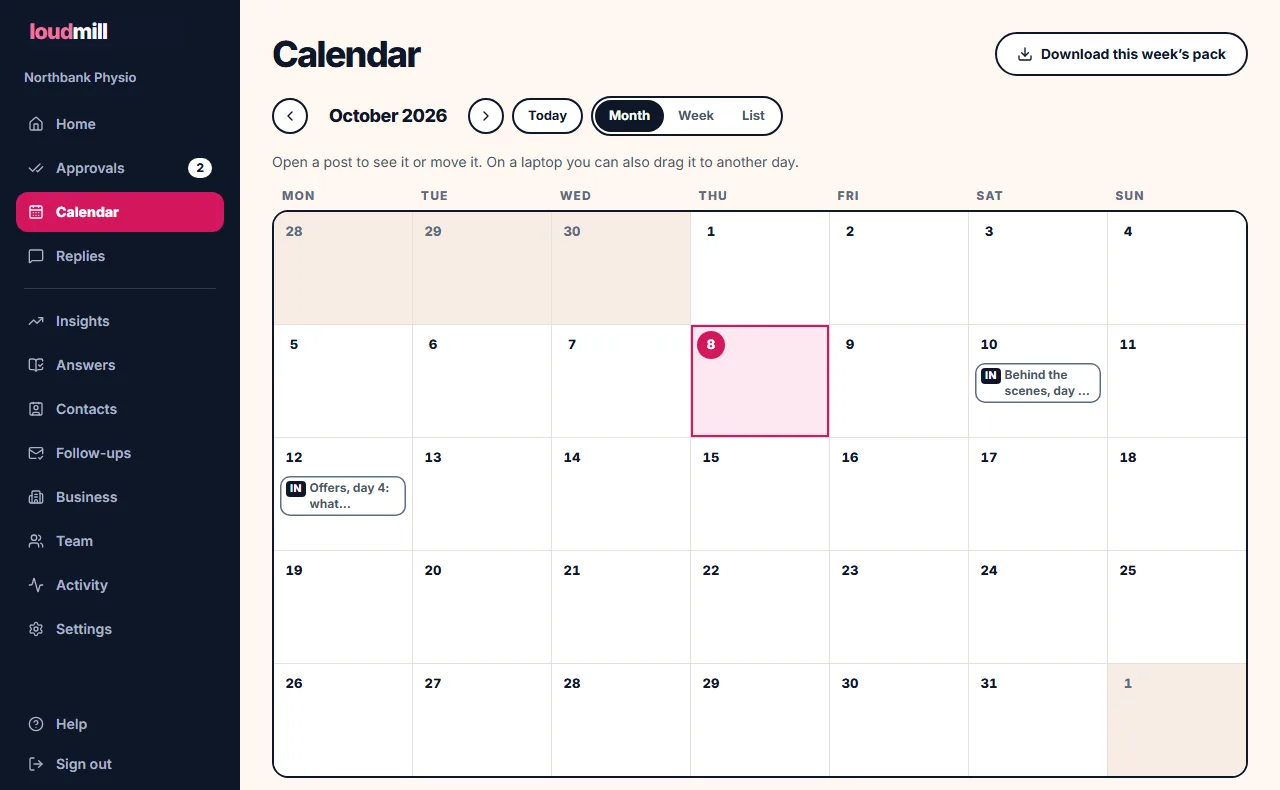
Calendar shows what's coming: Month on a laptop, Week on a phone, or List for the next four weeks.
- A draft is outlined, an approved post is solid pink, a posted one has a tick.
- Tap a post to see roughly how it will look.
- To move a post, open it, pick a day and time under Move to, and press Move. On a laptop you can also drag it to another day. Moving doesn't need a new approval.
Write a week, and the shape of the week
When nothing is waiting, Approvals shows Write a week (Home's week card has Write the week too). A small sheet names the week (‹ Week of Mon 26 Oct ›, this week to three weeks ahead), lists its notes with Add a note, and says the week in one sentence, for example 3 Facebook posts and 3 Instagram posts, on Mon, Wed and Fri. Balanced mix. Press Write the week of 26 Oct and the drafts appear in a moment, from Monday (or tomorrow, once the week has begun) to Sunday. A week that already has drafts reads Add to this week. Nothing is published until you approve it.
Want it different? Press Change (admins and the owner):
- For each channel, more or fewer posts a week (0 to 7) and the days they go on (Mon to Sun). A channel set to none gets no drafts at all.
- Mix: balanced (Loudmill's usual), more tips and fewer asks, more of your own work, or fewer asks.
Loudmill remembers the shape for next time, and Friday's automatic week uses it too, so you set it once. The newsletter isn't in the sheet: it keeps its own rhythm (every two weeks on a Tuesday; weekly or monthly in Settings → Weekly drafts). Loudmill writes up to 42 posts in one week; ask for more and the sheet says so before anything is written. Insights' Apply (say, “Facebook 3 → 4”) moves the same shape, so the sentence shows it.
The week's card: what's happening, and notes
Home shows one card for a dated week: Week of Mon 26 Oct (26 Oct to 1 Nov), with ‹ › for this week or up to three weeks ahead. The line under it says where that week stands: waiting for Friday 10:00, being written, drafted (with Approve), couldn't be written (with Try again), paused for your holiday, or weekly drafts off. It never moves on by itself after Friday.
Under What's happening? type (or Say it) what's going on. Create drafts writes it up now, for you to approve; Save as a note writes and spends nothing, and that week's drafts are written with it (up to 300 characters, 10 notes a week). Each note has Must include (two a week), Remember this… (a business fact, something Loudmill always keeps in mind, or until a date) and Remove. A theme you chose before is now a note for its week.
Loudmill warns before writing when a note clashes (fully booked but offering space; sounds like an offer; a must-include day before any post). Written from: lists what the writer is given, each a link to where it lives. Once drafted, each note shows Included, Needs a look or Not included with the reason, as Friday's email does; a note added afterwards sits apart, and your drafts haven't changed.
This week's pack
Calendar → Download this week's pack gives you one zip of the coming week's approved posts: the words to paste, and each picture in square, portrait and story shapes. Use it for any platform Loudmill doesn't post to yet, your WhatsApp status, or a poster in the window.
A read-only link for a partner or accountant
Settings → Drafts → Share the week (read-only) → Make a link. Only the owner can. Copy it straight away; it's shown once. Whoever has it sees the next 7 days' posts (words and times), with no pictures, no customer details and nothing to press. It stops after 90 days, or when you press Turn it off or make a new one.
4. Email newsletters (live now)
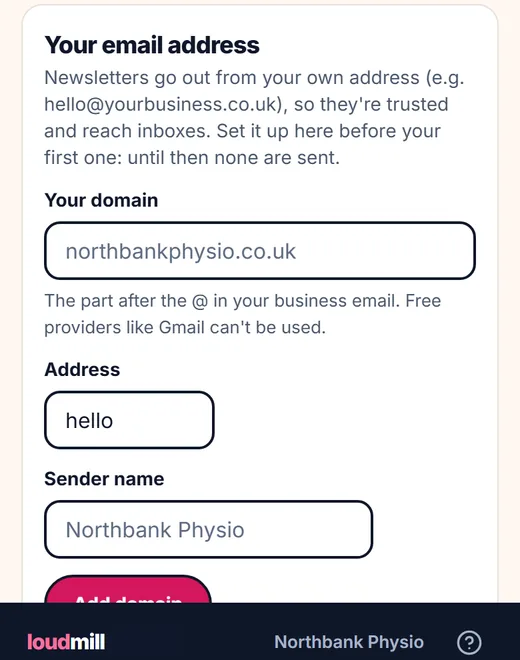
Your newsletters go out from your own email address, like hello@yourbusiness.co.uk. Never from Loudmill's. That keeps your emails trusted, and one business's list can never harm another's.
Step 1: connect your own email address
You need an email address at your own website address (for example @northbankphysio.co.uk). Free addresses such as Gmail, Outlook.com, Hotmail, Yahoo or iCloud can't be used for marketing email.
- Open Settings → Email → Your email address. (You need to be an admin or the owner.)
- Your domain: type your website address, the part after the @ in your business email, like
northbankphysio.co.uk. - Address: the part before the @. It starts as
hello. - Sender name: what people see in their inbox, like
Northbank Physio. - Press Add domain.
Add the records Loudmill shows you. Loudmill now shows a short list of “DNS records”. These are lines of settings that prove to Gmail, Outlook and others that Loudmill may send email for your address. You add them once, where your website address is managed:
- the company you bought your website address from (for example GoDaddy, 123-reg, IONOS or Namecheap), or
- your Microsoft 365 or Google Workspace admin, if they manage it, or
- your web designer. Send them the records; it takes them a few minutes.
For each record:
- In your provider's DNS settings, choose Add record and pick the same type Loudmill shows (TXT or MX).
- Copy the name and the value with Loudmill's Copy buttons, and paste them in. For an MX record, also type the priority shown.
- If your provider adds your website address to the end of the name for you, paste only the first part (for example
send, notsend.northbankphysio.co.uk).
Loudmill also shows one recommended record called _dmarc. Add it too: it helps your emails reach inboxes.
Press Check again. Changes can take from a few minutes to a few hours to be seen. When it works, the card says Verified: “Emails now come from your address.” Until then, no newsletter is sent. If the records still aren't found after about three days, the address is removed; just add it again.
Social posts don't need any of this. Only emails to your contacts do.
Step 2: add your contacts
Open Contacts (on a phone: More, then Contacts).
A few people: type one per line (email, first name, company). Choose Why can you email them? and press Add contacts.
A spreadsheet (Excel or CSV, up to 5 MB, from Outlook, Google, Mailchimp or your booking system):
- Press Or upload a spreadsheet (Excel or CSV). No file yet? Download the template (Excel).
- Choose a file.
- Match columns. Loudmill guesses which column is the email, first name and company. Fix any it got wrong. Only the email is needed.
- Why can you email everyone in this file? UK law (PECR) decides this:
- Consent: they asked to hear from you.
- Existing customers (soft opt-in): they bought from you, and you gave them a chance to say no.
- Business contacts (work addresses): people at companies, at their work address. Never sole traders or the public.
- Check and add. See how many are ready and which need fixing. Download the rows to fix if any. Tick that you may email these people, then press Add N contacts.
Only add people who asked to hear from you or bought from you recently. Old or bought lists bounce, and that harms your email reputation.
A sign-up form for your website: Contacts → Sign-up form for your website → tick Take sign-ups. Copy the link, or Copy form to paste into your website. People get an email from your address to confirm, and only then join your list, with proof of what they agreed to. Your own email address must be set up first.
Before it goes: who gets it, tests and previews
Under every newsletter in Approvals:
- Goes to N people, and how many can't be emailed (no consent, unsubscribed or bounced).
- Send gently (on by default). People new to your emails, or not emailed for over 2 years, go in two parts: a first batch now and the rest two hours later, once it's clear the list is healthy.
- Send to: Everyone, or only people with one of your tags.
- Send me a test: the newsletter goes to you only, with [Test] in the subject.
- Preview on a phone: see it as it will look on a phone.
Tags. In Contacts, press Add tags on a person (“boiler”, “runner”), then Save tags. Tags are for what you do for people, never their health.
Follow-up emails: welcome, rebook, missed you
More → Follow-ups. There are three: Welcome, Time to rebook and We've missed you.
- Press Draft it. Loudmill writes it in your voice. Change anything.
- Press Approve this wording, then switch it on.
- From then on it goes by itself to each customer who qualifies, from your address, between 9am and 6pm. Change the wording and it waits for your approval again.
Welcome goes only to people who join after you switch it on (through your sign-up form, or typed in on Contacts), never to a spreadsheet you upload. Rebook and missed-you count from each customer's last visit: press Visited today on Contacts, add a “last visit” column to your spreadsheet, or pick the customer when you press Got a booking on Home.
Unsubscribes, bounces and spam
- Every email has an unsubscribe link, and Gmail and Outlook show a one-click unsubscribe at the top.
- Anyone who unsubscribes, any address that bounces, and anyone who marks your email as spam is marked in Contacts and never emailed again.
- If too many bounce or are marked as spam, Loudmill pauses your emails before Gmail and Outlook stop trusting you. Settings says why. Clean your list in Contacts, then press I've cleaned my list: resume emails. Social posts carry on meanwhile.
Call me back
Someone asked you to ring? In Contacts, press Call me back next to them. Their automatic follow-up emails wait, and Home reminds you: “Ring Jo back”. Rung them? Press Done.
Already use Mailchimp?
If your customers are already in Mailchimp, Settings can show Or send through Mailchimp. Press Connect Mailchimp, sign in, and choose which audience newsletters go to (it needs a From address set in Mailchimp). Approved newsletters then go from your Mailchimp account. Mailchimp handles unsubscribes. If you don't see this card, email us and we'll tell you when it's available for you.
5. Bluesky and Mastodon (live now)
Both post by themselves as soon as you connect them. No waiting for anyone's approval. You need to be an admin or the owner to connect.
Connect Bluesky
Bluesky uses an app password: a separate password just for Loudmill, which you can cancel at any time without changing your real password.
In the Bluesky app or website:
- Open Settings, then Privacy and security, then App passwords.
- Add a new app password and call it Loudmill.
- Copy the password it shows. It looks like
abcd-efgh-ijkl-mnop.
In Loudmill:
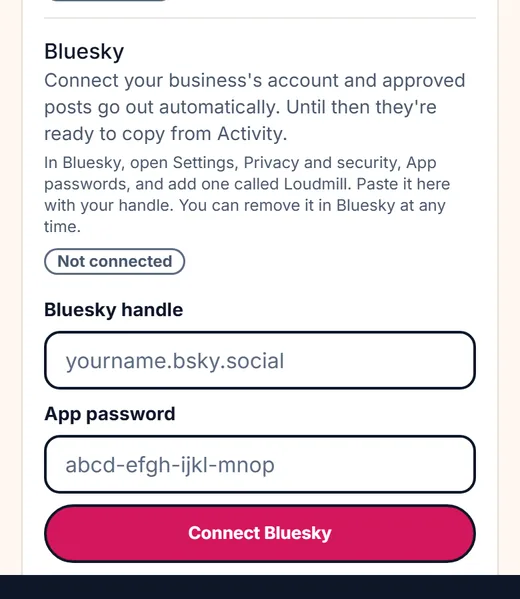
- Open Settings → Connections and find Bluesky.
- Bluesky handle: your handle, like
yourname.bsky.social(or your own web address if you use one as your handle). - App password: paste the app password. Never your main Bluesky password: Loudmill refuses it.
- Press Connect Bluesky. You'll see “Bluesky connected. Approved posts go to …”.
Loudmill works with Bluesky accounts hosted by Bluesky itself, which is almost everyone's. To stop, press Disconnect in Loudmill, or delete the app password in Bluesky.
Connect Mastodon
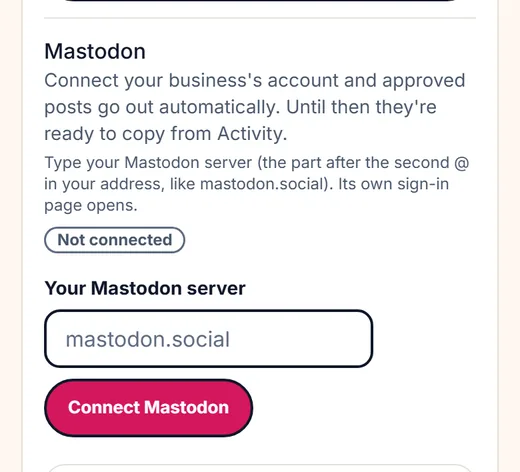
- Open Settings → Connections and find Mastodon.
- Your Mastodon address: paste it as it is, like
@northbank@mastodon.social. Your profile link, or just the server (mastodon.social), works too. - Press Connect Mastodon. Your server's own sign-in page opens.
- Sign in there and allow Loudmill. You come back to Loudmill, connected. (Finish within 10 minutes, or start again.)
What the posts look like
- Bluesky posts are up to 300 characters, Mastodon up to 500. Loudmill writes them to fit.
- They go out with your picture and its description (for people who can't see it), and your post's own link, so clicks show in your results.
- Likes, reposts and replies from Bluesky and Mastodon appear in Insights.
Replies
Replies to your Bluesky and Mastodon posts come into Replies every 15 minutes, each with an answer drafted in your voice. Nothing is sent until you press Send (see section 8).
If Replies says Reconnect Mastodon in Settings so Loudmill can see replies, your Mastodon connection is from before replies were added: press Disconnect on Mastodon, then connect it again.
Disconnecting
Disconnect asks you to sign in again first, for your security. Approved posts for that channel are then kept ready to copy in Activity.
6. The other platforms, when they're switched on
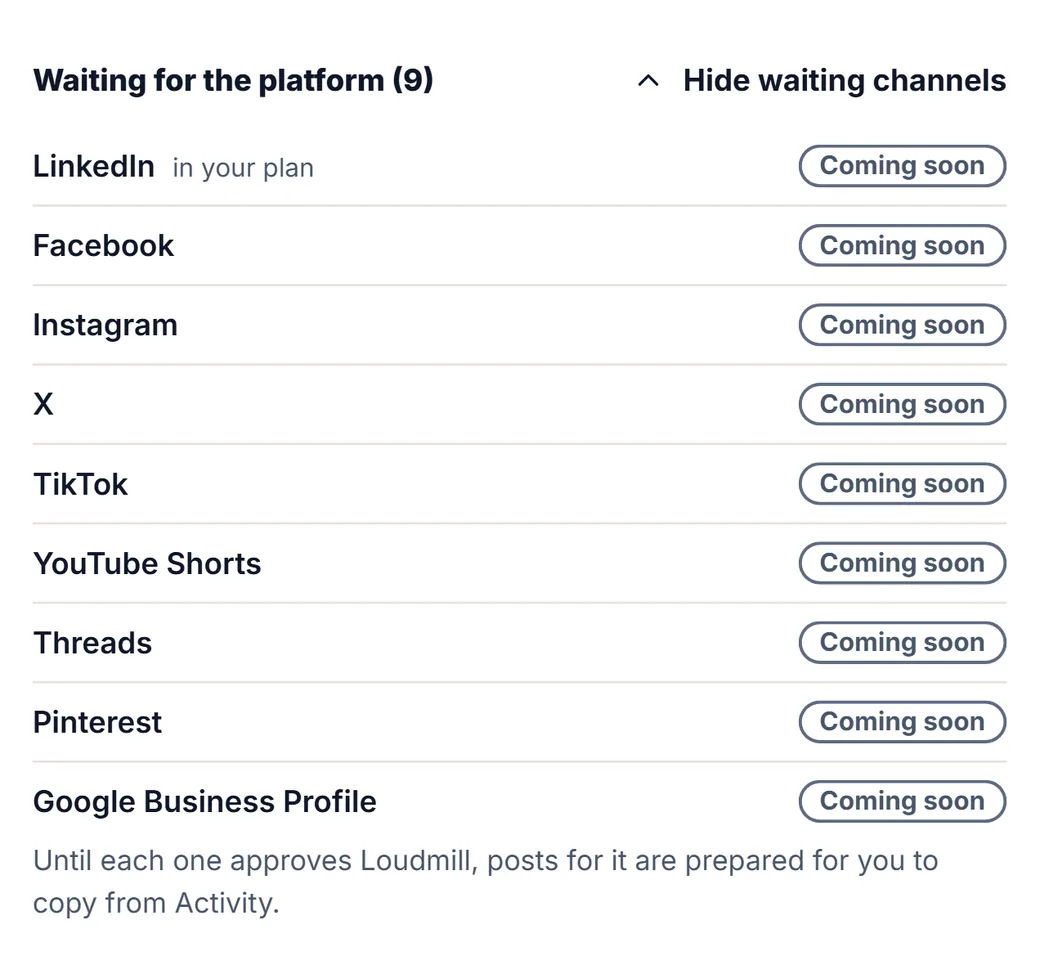
Loudmill already writes posts for Facebook, Instagram, LinkedIn, Threads, Pinterest, Google Business Profile, TikTok, YouTube Shorts and X. The connections are built, but each platform has to approve Loudmill's app before Loudmill can post there for you. Those reviews take weeks, and they're switched on one at a time. X isn't offered for now (it charges for every post).
How to tell what's switched on: open Settings → Connections. A platform that's waiting says Coming soon, under Waiting for the platform (press Show waiting channels). When a platform is switched on, its row moves to Ready to connect (or Other channels, if you didn't choose it) with a Connect button.
Using them today
- Add the platform under Business → Where to post. Loudmill writes its posts every week, to that platform's rules.
- Approve them as usual.
- At its time, the post shows in Activity as “Not posted: not connected yet”. Press Copy post and paste it into the platform's app. Or press WhatsApp to share it there.
- Or download the week in one go: Calendar → Download this week's pack.
- For Reels, TikTok and YouTube Shorts: on a post with a picture, press More → Make a video. You get a short vertical video to save and post.
Platform by platform
None of these is switched on yet. When one is, you connect it once in Settings → Connections (admins and the owner), sign in on the platform's own page, and approved posts then go out by themselves. Nothing ever goes without your approval.
- What Loudmill will do: post your approved posts to your business's Facebook Page, with their picture. A carousel of your own photos goes as one post with every photo. Each post's likes, comments, shares and reach show on Insights.
- What you'll need: a Facebook Page for your business, and a Facebook account that manages it.
- How you'll connect: Connect Facebook, sign in with Facebook, and choose your Page under Post to if you manage more than one.
- What Loudmill will do: post to your Instagram account. Every Instagram post needs a picture. A carousel of your own photos goes as one Instagram carousel (up to 10). When connected through your Facebook Page, each post's numbers show on Insights.
- What you'll need: an Instagram professional account (Business or Creator, free to switch: Instagram → Settings → Account type and tools), ideally linked to your Facebook Page.
- How you'll connect: connecting Facebook connects the Instagram account linked to your Page (one sign-in for both). No Facebook Page? Connect with Instagram signs in with Instagram itself. Turn off Instagram's own “share to Facebook”, or Facebook gets each post twice.
- Carousels: Your photos → Make a carousel → Make it a post writes the words and puts the slides on an Instagram and a Facebook draft in Approvals.
- What Loudmill will do: post to your company page, or to your personal profile, with the picture.
- What you'll need: a LinkedIn account. To post as a company page, you must be an admin of that page.
- How you'll connect: Connect LinkedIn. With one company page, posts go there; Change where posts go switches to your profile. LinkedIn asks you to reconnect about every 60 days; Loudmill emails you a week before.
Threads
- What Loudmill will do: post to your Threads profile, up to 500 characters, with the picture. Each post's numbers show on Insights.
- What you'll need: a Threads profile (it comes with your Instagram account).
- How you'll connect: Connect Threads and sign in.
- What Loudmill will do: pin your pictures to a board, linking to your enquiry page. Every pin needs a picture.
- What you'll need: a Pinterest account (a free business account is best).
- How you'll connect: Connect Pinterest. With one board, pins go there; with several, you choose; with none, Loudmill makes one named after your business.
TikTok
- What Loudmill will do: turn each approved post into a short vertical video made from its picture (a carousel goes as a photo post), and send it to TikTok.
- At first, to your TikTok inbox. Until TikTok has finished checking Loudmill, TikTok only allows drafts. TikTok sends you a notification; tap it, paste the words (Copy post in Activity) and post it from the TikTok app. Activity tells you when one is waiting.
- Later, straight to your profile. Once TikTok has checked Loudmill, every TikTok draft in Approvals shows TikTok's own posting screen: the account it goes to (Posting to TikTok as …), Who can see this post (you choose; nothing is picked for you), Allow comments, Allow Duet and Allow Stitch (all off until you turn them on, and greyed out if your TikTok account has them switched off), This post promotes a brand, product or service (then Your brand and/or Branded content, which TikTok labels “Promotional content” or “Paid partnership”), Preview the video, and TikTok's Music Usage Confirmation line. Press Save TikTok choices, then approve. TikTok may ask you to reconnect once at that point.
- The “made with AI” setting is switched on for you when the picture was made by AI.
- What you'll need: a TikTok account.
- How you'll connect: Connect TikTok and sign in with TikTok.
YouTube Shorts
- What Loudmill will do: turn each approved post into a Short made from its picture, and upload it to your YouTube channel, with YouTube's “altered or synthetic content” setting switched on when the picture was made by AI.
- At first, uploaded as private. Until Google has finished checking Loudmill, YouTube keeps every upload from Loudmill private. Activity says so: open YouTube Studio, find the video and set it to Public.
- Later, public straight away.
- What you'll need: a YouTube channel, and the Google account that owns it.
- How you'll connect: Connect YouTube Shorts and sign in with that Google account. The Connections row links to the YouTube Terms of Service (you agree to them by connecting), Google's Privacy Policy, and Google's security settings, where you can remove Loudmill's access at any time.
Google Business Profile
- What Loudmill will do: put your approved Google posts on your Business Profile as updates, with their picture. Google doesn't allow links or phone numbers in an update's words, so Loudmill leaves them out and puts your page on the update's Learn more button. Once connected, Be found everywhere also checks your Google listing against your details and tells you if they differ.
- What you'll need: a verified Google Business Profile, and the Google account that owns or manages it.
- How you'll connect: Connect Google Business Profile, sign in with that Google account, and choose the business if you manage more than one.
- Today: copy the weekly Google post from Activity into your profile. It takes two minutes.
X
- Not offered for now: X charges for every post. Loudmill still writes X posts if you choose X under Where to post, ready to copy from Activity.
When a platform is switched on, we'll tell you, and Settings shows its Connect button. You don't need to do anything before then.
7. Photos, pictures and honesty
Your own photos come first
- On Home, press Add photos (or use the link in Friday's email). Your photos opens.
- Press Take or choose photos and pick 2 or 3 photos from this week's jobs.
- Tick The customer is happy for these to be shared (no house numbers, faces or number plates unless they agreed). Loudmill never assumes it.
- Say what each photo Shows (a service, like “Sports massage”).
Next week's posts use them by themselves, oldest first, each once. Loudmill removes the hidden details phones add, including where a photo was taken.
On Android you can share photos straight from your gallery: put Loudmill on your home screen first, then in your gallery press Share, then Loudmill. On an iPhone, use Take or choose photos instead.
Text cards
Without a photo of yours, a post gets a text card: its headline in your colours, with your logo. Honest, and free.
AI pictures, and the AI label
- On a draft, AI picture makes one. Before it does, Loudmill tells you why your own photos usually do better; you can still go ahead.
- Loudmill asks the AI for pictures without words or real people, and, for trades, physios and beauty, for illustrations rather than photo-like pictures. Check each picture before you approve it.
- Say what the picture shows. Under Add a picture (or More → Change the picture), the box What should the picture show? has Loudmill's idea filled in. Change it to anything (“a plumber in his van checking his phone, smiling”), then press AI picture: Loudmill turns your words into one scene a camera could see, keeping everything you said, and the card shows the scene it drew. Pictures you pressed Keep this look on guide the style of Loudmill's own ideas; your own words go without them. People, places and moments from your customers' day make better pictures than a laptop on a desk.
- If the picture idea is a before-and-after, or the post sounds like it shows your own work (“we just finished this”), Loudmill gives you a heads-up first, because an AI picture there could look like a real job. Choose Use my photo, Text card, or Use an AI picture anyway. It's your call, and your choice is kept in the post's History.
- An AI picture under words like that also shows a warning when you approve: tick I've read this. It's fine to post. to go ahead, or swap in your own photo.
- Every AI picture carries a “made by AI” mark inside the file, whatever you choose. Facebook, Instagram and Google can read it and may show an “AI info” label.
- A post with a picture can be ticked once the picture has appeared on your screen. If it can't be shown, Loudmill downloads it once more by itself; if it still can't be shown, the draft says so and offers Show the picture again. That only reloads the picture you already have and never makes a new one; you can also choose another picture there.
- To make AI pictures the default: Settings → Weekly drafts → When there's no photo of yours → An AI picture. To choose for one post before Loudmill writes it: the Picture chips on Create a post (see Create a post).
More to choose from: Show me 2 more
An AI picture that's nearly right? Under it, press Show me 2 more (about 7p), or or 3. Loudmill makes two or three more in the same look and shows them beside the one on the post; tap the one you want. Nothing is made unless you press the button.
- The price is on the button, in pence. The whole set is checked against your month's allowance first: all of them or none, never half a set.
- The same heads-up applies (a before-and-after, or words that sound like your own work), read once for the set.
- The ones you don't choose stay beside the post until it's decided, then go after 30 days. They are never posted and never in Pictures you've had before; the one you chose is.
Short AI clips
On a waiting draft with a picture, Short AI clip makes about 4 seconds of gentle movement from that picture, only when you press it. Every clip is labelled as made by AI. It's never offered for before-and-after posts or words that say you did the work. 8 a month are included. If you need more, you can buy 8 more for £5 including VAT; bought clips never run out. Short AI clips are switched on business by business as they become available.
Pictures you've had before
Every AI picture Loudmill makes for you is kept, so you never pay for the same picture twice.
- On a draft, under Add a picture (or More → Change the picture), press Pictures you've had before. Your AI pictures open in a grid, the ones you kept (Keep this look) first. Tap one and it's on the post: nothing new is made, so nothing is spent. If the post is a different shape, the picture is cropped to the middle.
- Pictures you turned down (Not my style) are behind Show ones you turned down.
- A picture used again is still an AI picture: it keeps its hidden “made by AI” mark, and the same heads-up applies under words like “we just finished this”.
- Loudmill does this by itself too, in the order that costs you least: your own photo first; then a picture you kept, as long as it hasn't been on any post that week or on that channel in the last six weeks; only then a text card or a new AI picture, whichever you chose in Settings.
- Your AI pictures stay with the business until you delete it, and they're in Download all your data.
Tidy my photo
On Your photos, Tidy my photo gives a product you sell a clean background and better light, as a new copy marked Tidied by AI. A photo of a job you did is never tidied: it stays as it was taken.
Carousels
Your photos → Make a carousel. Pick 3 to 5 photos (only ones with the customer's OK) and write a title. Loudmill makes the slides; Download the slides and post them together on Instagram or Facebook.
8. Replies, reviews and listings
Replies
When someone comments on your posts or messages you, Home says so. Open Replies.
- Each reply has an answer drafted in your voice. Check it, change it if you like, then press Send. Not needed takes it off the list.
- Needs a look comes first: a complaint, or someone asking for advice. Take your time with those. They're never sent in a batch.
- A lead comes right after complaints. When someone wants a quote, to book, or asks a price, the card says so (Wants a quote, Wants to book, Asking the price); Loudmill works it out in the same step that drafts the answer, so it costs nothing extra. Press Got an enquiry and it's logged once on Results, from that channel, with their first name. Not a lead takes the label off. Nothing is logged unless you press.
- If a lead asks something your saved answers don't cover, the card asks Answer once for everyone? Type the answer and press Save answer: it goes to Answers and every reply to that question uses it. A lead nobody has answered for an hour is the first thing on Home's Your week list.
- Answered first: when a lead or an unhappy customer has waited 30 minutes of business hours (08:00 to 18:00, Monday to Saturday, your time), Home says A customer has waited over 30 minutes for an answer at the top, and your phone buzzes once for that reply (never in the evening or on Sunday). Copy beside each saved answer on Answers puts its words on your clipboard, to paste into WhatsApp.
- Loudmill never makes up a price or a date. For “how much?” it offers to arrange a quote.
- Today: Bluesky and Mastodon. Facebook and Instagram join when they're switched on.
Asking for Google reviews
Open Reviews (Home → Ask for a review).
- Paste your Google review link once (Google Business Profile → Ask for reviews → Copy link).
- After a job, type the customer's first name, then press WhatsApp, Text message or Copy the words. It goes from your own phone.
At the right moment, by itself: log a booking for a customer on Home (pick them under Got a booking), or press Visited today on them. That evening, from 6pm your time, the top of Home says Ask Jo for a review, with WhatsApp, Text and Copy (the same words as above). Not now hides it. Each customer is suggested once; anyone who unsubscribed isn’t suggested.
The rules (UK law since April 2025): ask every customer the same way, never only the happy ones, and never offer anything in return for a review. Loudmill's words follow these rules.
A poster for your counter: Reviews → Print a poster for your counter. It says “Happy with us? Tell others.” with a QR code customers scan to review you.
Replying to a review: paste it, pick the stars, press Draft a reply, check it, then Copy reply into Google.
Be found everywhere
Business → Be found everywhere lists the places people find local businesses: Google Business Profile, Apple Business Connect, Bing Places, a Facebook Page, Yelp, Nextdoor and your trade's own directory (Checkatrade, Treatwell, MyBuilder, Yell…).
- Claim each listing (it's free), then tick it.
- Write your business name, address (or area) and phone once, exactly as you want them. Copy all four into each listing. The same details everywhere help maps and AI assistants trust you.
Results and Insights
- Every post carries its own link to your booking or contact page (set it on Business → Where enquiries go). Home → Is it working? counts the clicks.
- Or WhatsApp: put a WhatsApp number in Or a WhatsApp number on the same card. Each post’s link then opens a WhatsApp chat with you, with Hi <your business>, I saw your post and I’d like to ask about it. already typed. Clicks are still counted. It opens your own WhatsApp: no WhatsApp Business account or fees.
- When someone gets in touch, press Got an enquiry or Got a booking on Home, and say where they came from.
- Insights shows which channels, topics, days and pictures do best, and Where your work comes from. Once enough posts have gone out, it makes suggestions; press Apply and next week's drafts follow them.
- The Thursday check-in. On Thursday from 10:00 (your time zone), the day before Friday's drafts, the people who approve posts get one email and a phone alert: Anything happening in the week of 26 October? It lists what Friday will use, has Add a note (a page for that week's notes, no sign-in needed, until Friday 10:00; it's for you only, so don't forward the email), and says If I don't hear from you, Friday's drafts are written as usual. Owners and admins also get the top Insights suggestion as a second paragraph, with an Apply link that works once, until Friday 10:00. Nothing changes unless you press it. Once a week; never after 21:00, while you're away, or when weekly drafts are off.
Your monthly report
On the 1st of each month, owners and admins get an email: posts published, emails sent, how your drafts did, and your results. Turn it off in Settings → Weekly drafts → Email me a monthly report.
9. Your team, devices and settings
For some actions (downloading your data, resetting settings, deleting the business, disconnecting a channel, making someone an admin) Loudmill asks you to sign in again first: the button says Sign in again to continue. Press it, sign in, and you come straight back to the same place with what you'd typed still there.
Inviting your team
More → Team → Invite by email. Choose a role and press Make an invite link. The link works only for that email address, once, for 7 days.
| Role | What they can do |
|---|---|
| Owner | Everything, including billing and deleting the workspace (the whole business) |
| Admin | Business profile, team, settings, and approving |
| Approver | Plans, edits and approves posts |
| View only | Sees everything, changes nothing |
Phone alerts
Settings → Devices and alerts → Phone alerts → Turn on alerts on this device, and allow notifications. Press Send a test to check. On an iPhone, add Loudmill to your Home Screen first and turn alerts on from there.
Your devices
Settings → Your devices lists where you're signed in. Lost a phone? Press Sign out beside it. Sign out on all devices (under Your account) signs out everywhere.
Going away
Settings → Weekly drafts → Going away? Choose From and Until (last day away) and press Pause. Or press Skip next week for one week off.
- While paused, nothing is posted and nothing new is drafted.
- Posts you'd already approved wait, then go out over the following days, not all at once.
- Back early? Press Start again now. (Before the pause starts, the button says Cancel the pause.)
Weekly drafts settings
In Settings → Weekly drafts (admins and the owner):
- Weekly drafts on or off.
- A picture for every social post.
- Mention UK dates and seasons (bank holidays, Mothering Sunday, your busy season).
- Weather ideas. Once a week Loudmill checks the 10-day forecast for your area (Open-Meteo, a free weather service: it gets only the first half of your postcode, like LS1, or your town, and nothing about you or your customers). A cold snap (0 °C or below on two days), a heatwave (27 °C or more on three days) or heavy rain (15 mm or more on two days) can shape at most one post, only for trades the weather affects (heating, plumbing, roofing, gardening, window cleaning, pest control, cafés), always worded as a forecast and never as an offer. The draft carries a Weather tag. It needs an address on Listings; without one, nothing is checked.
- How often the newsletter goes: every week, every two weeks or every month.
- When there's no photo of yours: a text card or an AI picture.
- Fully booked? Pick the date you're free from. Posts keep you seen without asking for work you can't take.
- Email me about my posts, Thursday check-in and Email me a monthly report.
AI writing and your allowance
Settings → AI writing: switch it off and nothing about your business is sent to any AI provider (no drafts are written either). This month shows what Loudmill has written and how many more posts with pictures fit before the 1st.
Download all your data
Settings → Your account → Download all your data (owner only). You may be asked to sign in again. The zip has your profile, contacts, services, every post with its history, pictures, team and usage.
Resetting your settings
Settings → Your account → Show danger zone → Reset settings (owner only; you may be asked to sign in again). It takes your business settings back to the start: where to post, voice, pictures and the weekly plan shape. Your posts, photos, contacts, replies and connections stay, and so do your business's name, website and location. Posts you've already approved still go out. Type your business's name exactly (the box says Matches; the button stays grey until it does), press Reset settings, check what goes and what stays, then Confirm and reset: you go through the three setup steps again. No emailed code: nothing is deleted.
What Loudmill has learned from you is kept unless you tick Also forget what it has learned about my taste: that removes the rules it always follows (from “Remember this always”) and forgets which AI pictures you kept or turned down, and which photos you ticked as a style guide. The box says the real numbers. Your posts, rejection reasons and answers still steer new drafts either way.
Deleting the business
Settings → Your account → Show danger zone (owner only). Type your business's name exactly (the box says Matches), press Delete this business, read what goes, then enter the 6-digit code we email you and press Confirm and delete. The code works for 10 minutes and once; three wrong tries end it, and Send a new code gets another (up to three an hour). Everything stops at once. For 7 days you can restore it from the welcome page; after that it's gone for good, so download your data first. If a code arrives that you didn't ask for, don't enter it: sign out on all devices and tell us at hello@loudmill.com.
10. Help and troubleshooting
In-app Help
Press the ? at the top of any page (or More → Help). Search in your own words: “holiday”, “unsubscribe”, “Bluesky”.
Common problems
No drafts on Friday.
- Home shows a card: “The drafts for the week of … couldn't be written”. Press Try again once; it won't write the week twice.
- Check Settings → Weekly drafts is on, and that you're not paused (Going away?).
- Loudmill pauses weekly drafts if nobody in the business has signed in for 30 days. Sign in and they start again.
- Meanwhile, press Write a week on Approvals when nothing is waiting.
A post didn't go out.
- You get an email (never at night) and a phone alert with the reason. Usually a connection has lapsed.
- Reconnect the account in Settings → Connections, then open Activity and press Try again. For a social post, check your page first in case it did go out.
A disconnected account. A yellow bar shows while a channel needs reconnecting. Its posts are kept for you to copy, so nothing is lost. For Bluesky, if you deleted the app password, press Disconnect and connect again with a new one.
An email bounced. The address doesn't exist any more. Contacts marks it Bounced and it's never emailed again. Activity → Who didn't get it lists the addresses. If many bounce, your emails pause (see Unsubscribes, bounces and spam).
My newsletter didn't send. Home says why: your email address isn't verified yet (Settings → Your email address → Check again), nobody on your list may be emailed, or it's waiting for your approval.
I can't sign in. Use the same way you used the first time (Google or email code). The email code can take a few minutes. See How signing in works on the sign-in page.
Contact us
Email hello@loudmill.com from the address you sign in with, and tell us your business's name and what you were trying to do. A screenshot helps. Please never send us a password or an app password.
Last updated 8 October 2026.
Back to Loudmill · Privacy notice · Terms of service · Data processing agreement · Subprocessors